
⚠️ CRITICAL BEFORE YOU START
Changing company address impacts:
- Tax jurisdictions
- State & local filings
- W-2s and quarterly returns
👉 Always confirm:
- Effective date of change
- Whether the location (worksite) is also changing
- If taxes need to be updated
✅ STEP 1: Confirm the Type of Address Change
Company Legal AddressUsed for tax filings (941, W-2, etc.)
Work Location / Worksite Address
Drives:
Local taxes
SUI
Work location reporting
FEIN / Tax Profile Address
Used for agency registrations
👉 If this is a physical move, you likely need to update:
- Company address
- Work location
- Possibly employee work locations
✅ STEP 2: Update Company Address
Navigate to Client Management > Client Maintenance > Addresses
What to update
- Address Description Example (Primary)
- Address Line
- ZIP
- City
- State
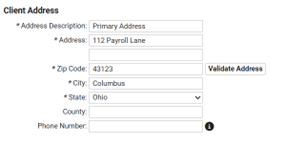
Validate Address
Select to validate the address to get the city and state fields to populate.
Choose the suggested address or use the address that you originally entered.
Click on the Continue icon.
- The address will be validated.
- Click on Save.
Note: Address validation is needed to provide files for EEO reporting.
✅ STEP 3: Update Work Locations (IF APPLICABLE)
When this is required
If the company:
- Moved offices
- A new location opened
- Changed employee worksite
Navigate to Client Management > Work Locations> Add Work Location
- Select the location or Add New
- Based on the zip code, verify the County in the Ohio Tax Finder - Ohio Tax Finder
- Select County
- Next > Save
🚨 Why these matters
Work location drives:
- Local taxes (RITA, CCS, etc.)
- State unemployment
- School district taxes (Ohio)
✅ STEP 4: Update Delivery Address (IF APPLICABLE)
Client Management > Client Maintenance > Delivery Package
What to update
- Description Example (Primary)
- Address (Select your address from the drop-down menu)
- Contact
- Delivery Method
✅ STEP 5: Update Legal Company Address (IF APPLICABLE)
🚨 CRITICAL CHECK
Ask:
👉 “Is this the address that should appear on tax forms?”
If YES → proceed
If NO → stop and confirm
Navigate to Client Management > Client Maintenance> Legal Company
- Under Address Tab > Select Legal Address from the drop-down menu
- Mailing Address > Select Address from the drop-down menu
- Physical Address Select Address from the drop-down menu
✅ STEP 6: Update Employee Work Locations (IF NEEDED)
When required
If employees:
- Physically moved
- Work from a new address
Navigate to Employee Management > Client Maintenance > General
- Locate Tax Location > Select Work Location applicable to that employee > Save
✅ STEP 7: Save and Audit
After saving
Review:
- Company profile updated
- Location updated
- Employees updated
- Taxes are still correct
Confirm
- Correctly calculate taxes
- No missing jurisdictions
- Address appears correctly
🧠 SCENARIO
Company moves from:
100 Old St, Columbus, OH
To:
200 New St, Dublin, OH
What must be updated:
✔ Company address
✔ Work location
✔ Employee location
✔ Local tax (Columbus → Dublin)
❌ MOST COMMON ERRORS
- Updating only the company address
- Forgetting work locations
- Not reviewing taxes
- Leaving employees tied to old location → wrong taxes
- Not updating the delivery address
✅ FINAL CHECKLIST
Before finishing:
✔ Company address updated
✔ Work location updated (if needed)
✔ Employees tied to the correct location
✔ Tax profiles reviewed
✔ Payroll tested
✔ Reports verified