Table of Contents
Tickets.
Where to access.
Create a ticket
Notes.
Tasks.
Adding a task to a ticket
View your task.
Attachments.
Help Desk.
Dashboard.
Tickets
Where to access
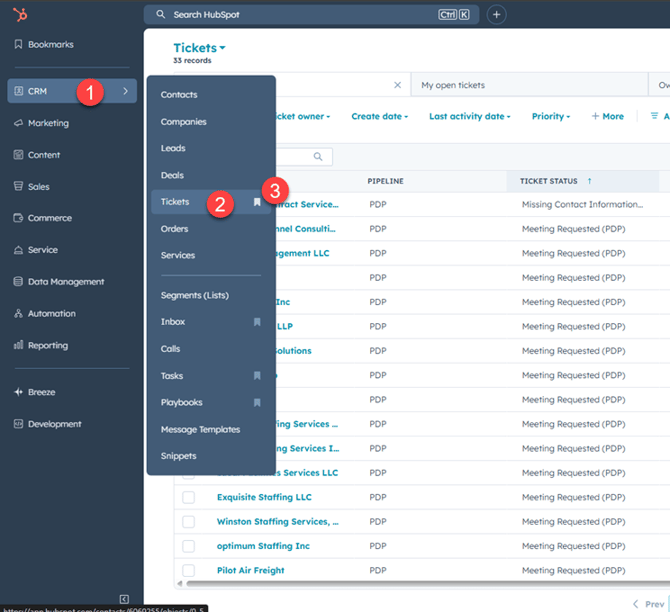
- Navigate to CRM in the menu
- Navigate to tickets
- Select the bookmark picture next to word tickets to bookmark this item.
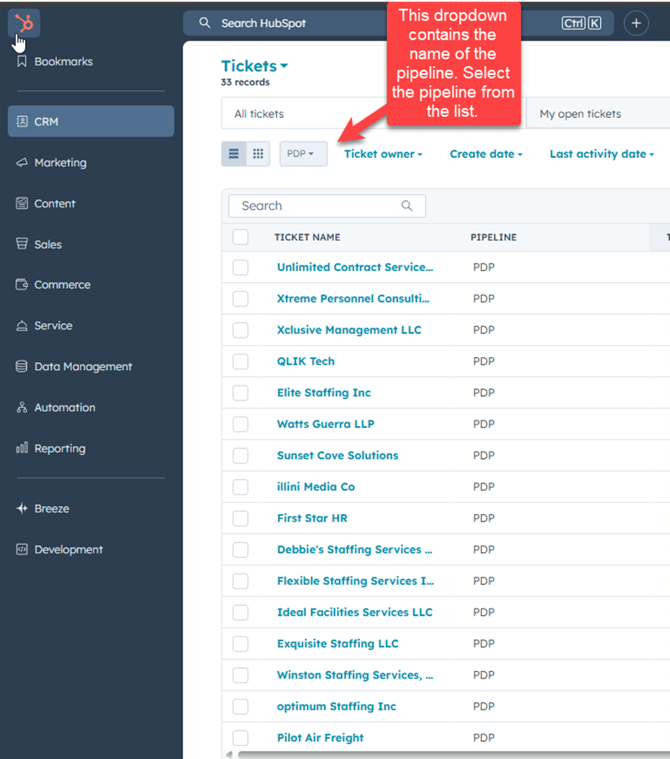
- Select the applicable pipeline
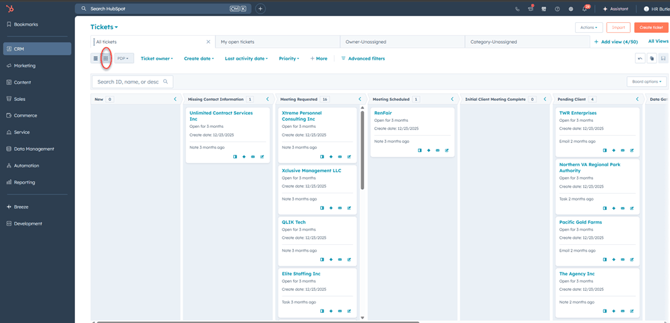
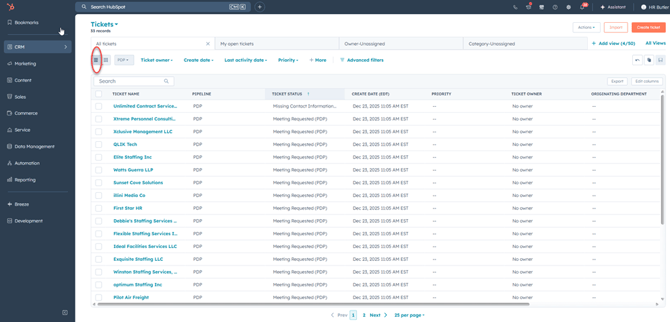
- This displays a list of tickets. Tickets can be listed as a list or board. The images below show the 2 different ways. The red circle shows where to change the view.
Create a ticket
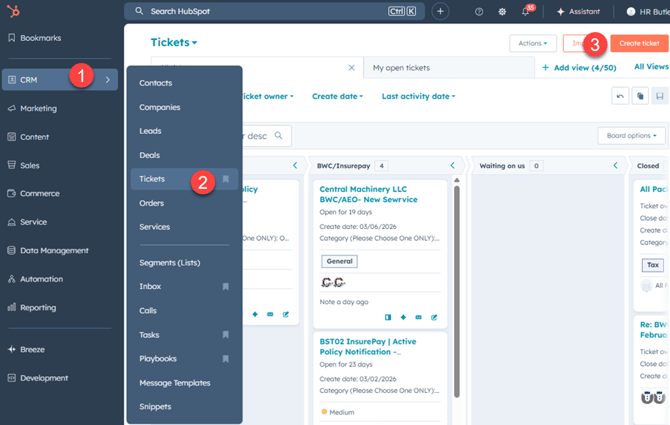
- Navigate to CRM in the menu
- Navigate to tickets
- Select “create ticket”
- Enter the required information.
Notes
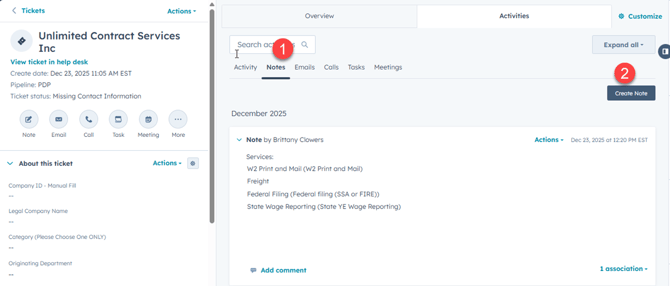
- After selecting the ticket, select the Notes tab.
- Select Create Note
- Enter the details in your note.
- If the notes need to be read by someone, type @ and enter the person’s name. A list will appear once you start typing the name.
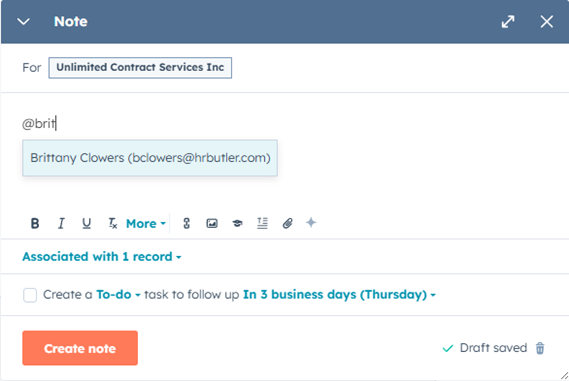
- Select create note.
Tasks
Adding a task to a ticket
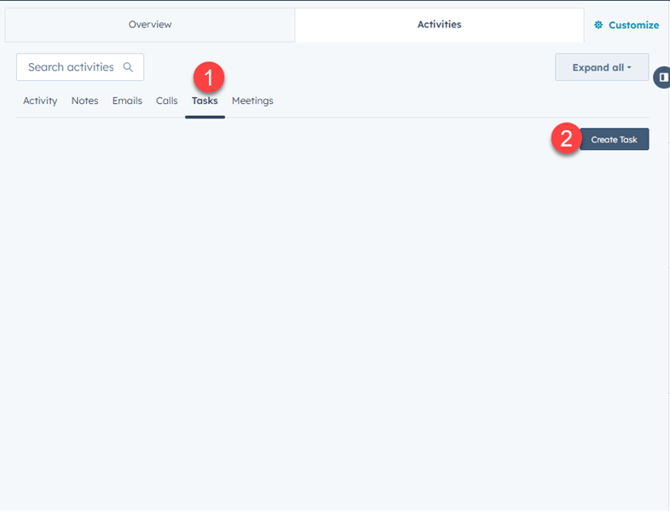
- Select the task tab at the top of the page
- Select create task
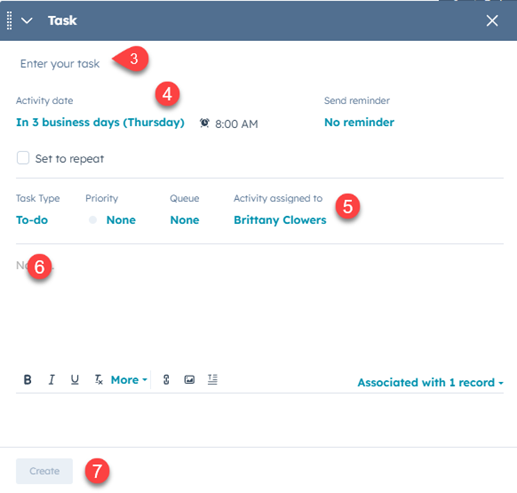
- Enter the name of your task
- Set a date
- Assign the task to someone
- Add any notes regarding the task, you may also attach files.
- Select create
View your task
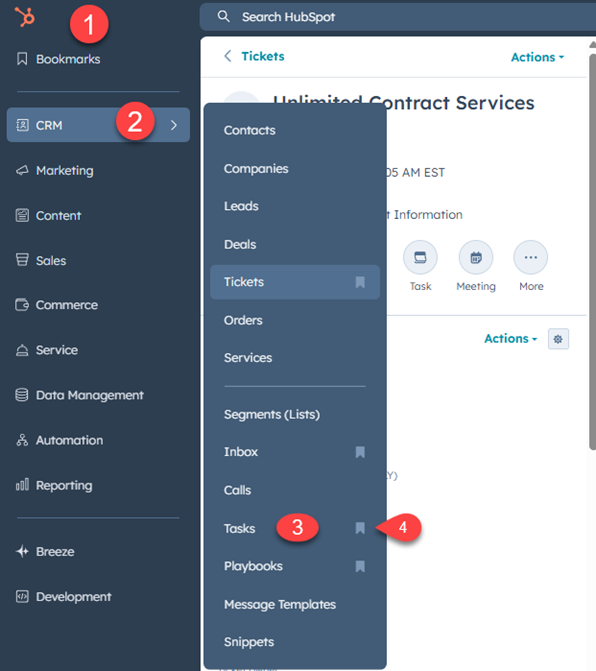
- Navigate to the menu
- Select CRM
- Select tasks
- Select the bookmark symbol to save it to your bookmarks.
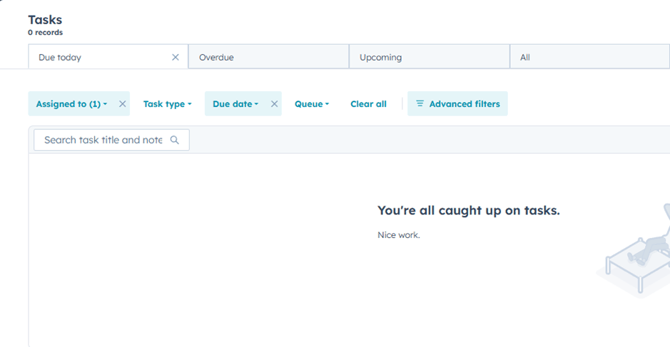
- This will lead you to the tasks screen. This screen will list your tasks. It contains a tab for all, upcoming, overdue, and due today.
Attachments
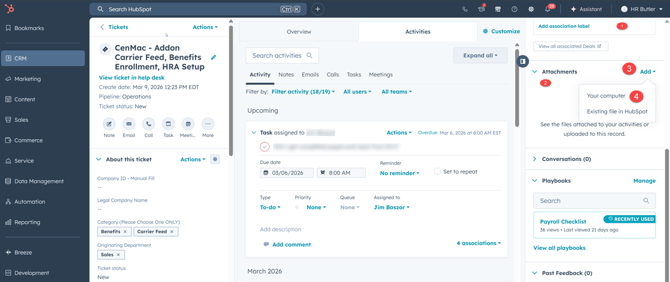
- Navigate to the right side of the ticket.
- Scroll until you see “attachments”.
- Select “add”
- Select “your computer”
- Select the file from your computer.
Help Desk
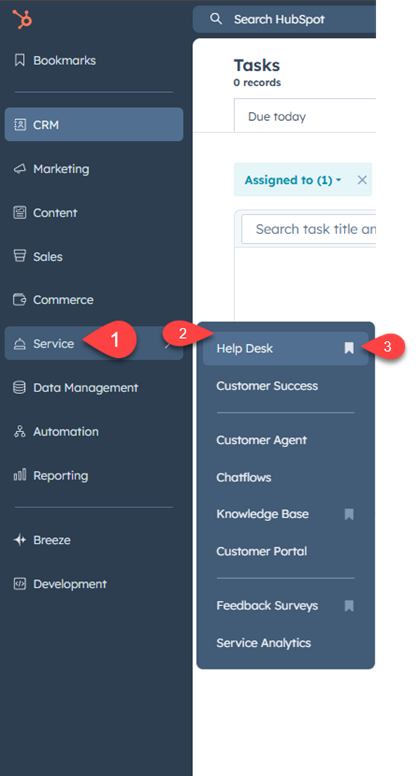
- Navigate to service
- Navigate to help desk
- Select the bookmark next to help desk to save.
Dashboard
Dashboards can be created if needed to reflect the information available in Hubspot. For instance, a team manager can have a dashboard that reflects the number of open tickets assigned to each team member and the ticket statuses.
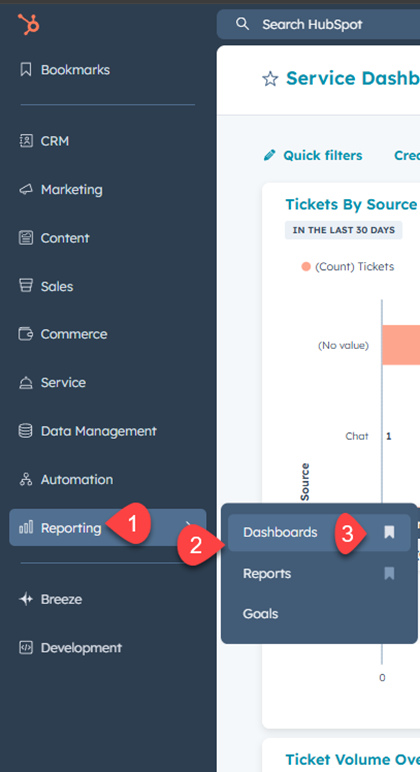
- Navigate to Reporting
- Navigate to Dashboard
- Select the bookmark symbol to save it.